Kickstart Orbish

Orbish Manual

Although Orbish is quite easy to handle some of the functionalities need some further explanation.

What’s Orbish

Orbish is a looping software that comes as a plugin for digital audio workstations (DAW) like Ableton Live, Logic Pro, Pro Tools, etc. Future versions will be in standalone for PC and mobile.

Functionalities

Record audio in sync with the beat or measure of the host application. Once recording ends Orbish loops the recorded audio. Each subsequent recording results in a new layer of audio on top of the first one.

Orbish3D

The recordings are organized in 3 dimensions:

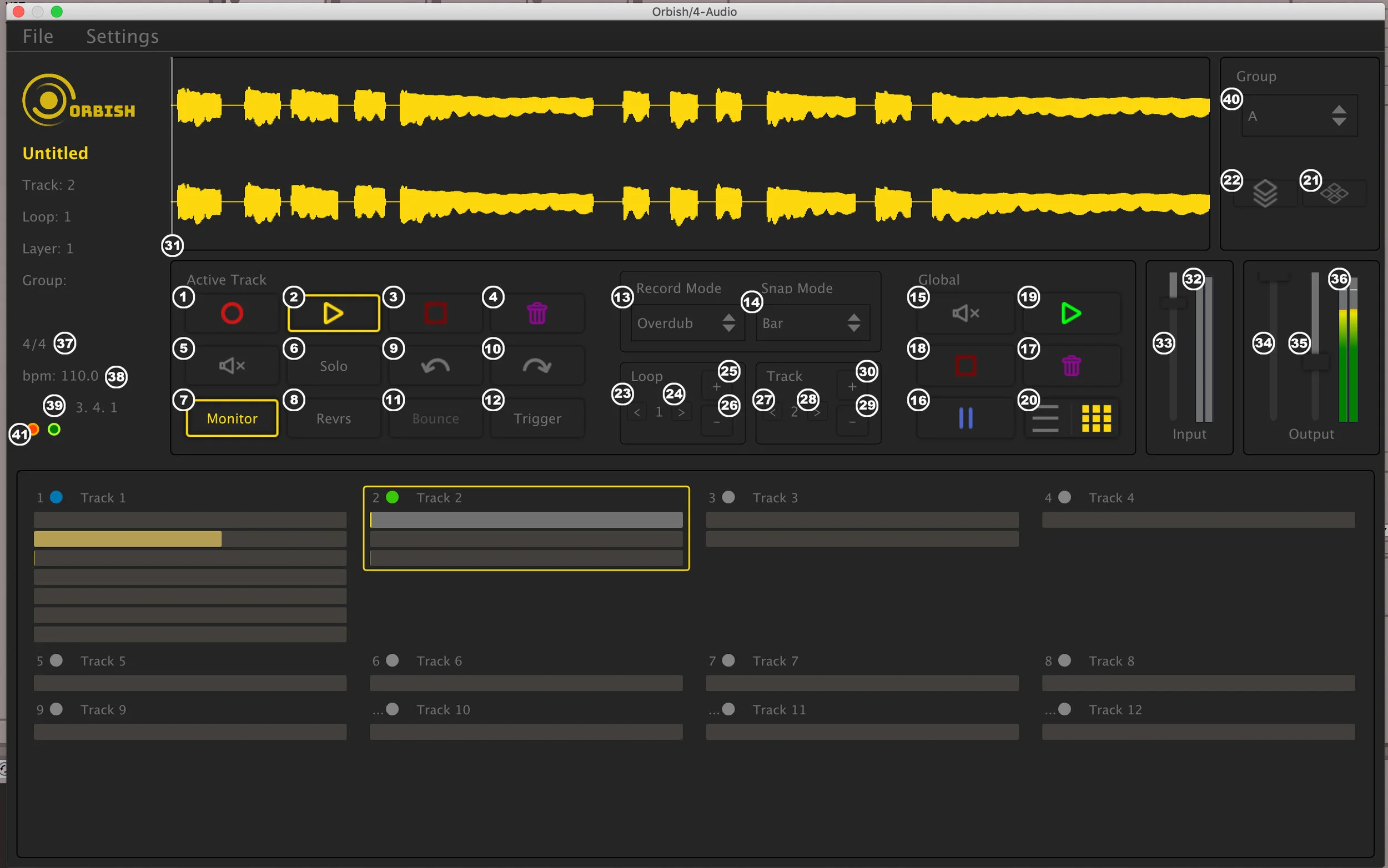
Orbish GUI Interface

Summary of Controls

Transport control per track

  1. Start/Stop recording on the active track
  2. Play/Pause the recorded material on the active track or group
  3. Stop playing on the active track or group
  4. Clear the active track
  5. Mute the active track or group
  6. Play exclusively the active track or group
  7. Listen to input audio when this track is active
  8. Reverse the audio on the active track
  9. Undo latest overdub recording
  10. Redo latest overdub recording
  11. Flatten all overdub layers to one
  12. Start recording when input signal exceeds the predefined threshold

Global transport control

  1. Select the recording mode (Overdub, Punch in, etc)
  2. Select the sync mode (to beat, bar, …)
  3. Mute all tracks
  4. Pause all tracks
  5. Clear all tracks
  6. Stop playing on all tracks
  7. Start playing on all tracks
  8. Toggles between horizontal and vertical layout of the tracks
  9. Remove the active track from the selected group
  10. Add the active track to the selected group

Track & Loop Control

  1. Go to previous loop on active track or group
  2. Go to next loop on active track or group
  3. Create new loop on active track
  4. Remove latest loop from active track
  5. Go to previous track
  6. Go to next track
  7. Create new track
  8. Remove latest track

Track region

  1. Shows the progress of the loop
  2. Shows the level of input signal
  3. Adjust the level of the input signal for the active track
  4. Adjust the level of the output signal for the active track
  5. Adjust the level of the general output signal
  6. Shows the level of output signal

Info region

  1. Current time signature
  2. Current tempo (beats per minute)
  3. Shows the progress of the loop in bars/beats/subdivision
  4. Select a group, then add or remove tracks. All tracks in the same group will act simultaneously for certain commands
  5. Witness lamp – shows if track is currently recording (red), playing (green), muted (blue) or soloing (orange)